Your website: vacancies, fees and enquiries
Shape your ready-made public site — vacancy badge, fees, your photo and story, qualifications, reviews, colours and a free web address — then publish and reply to enquiries fast.
5 min read
What parents see on your site
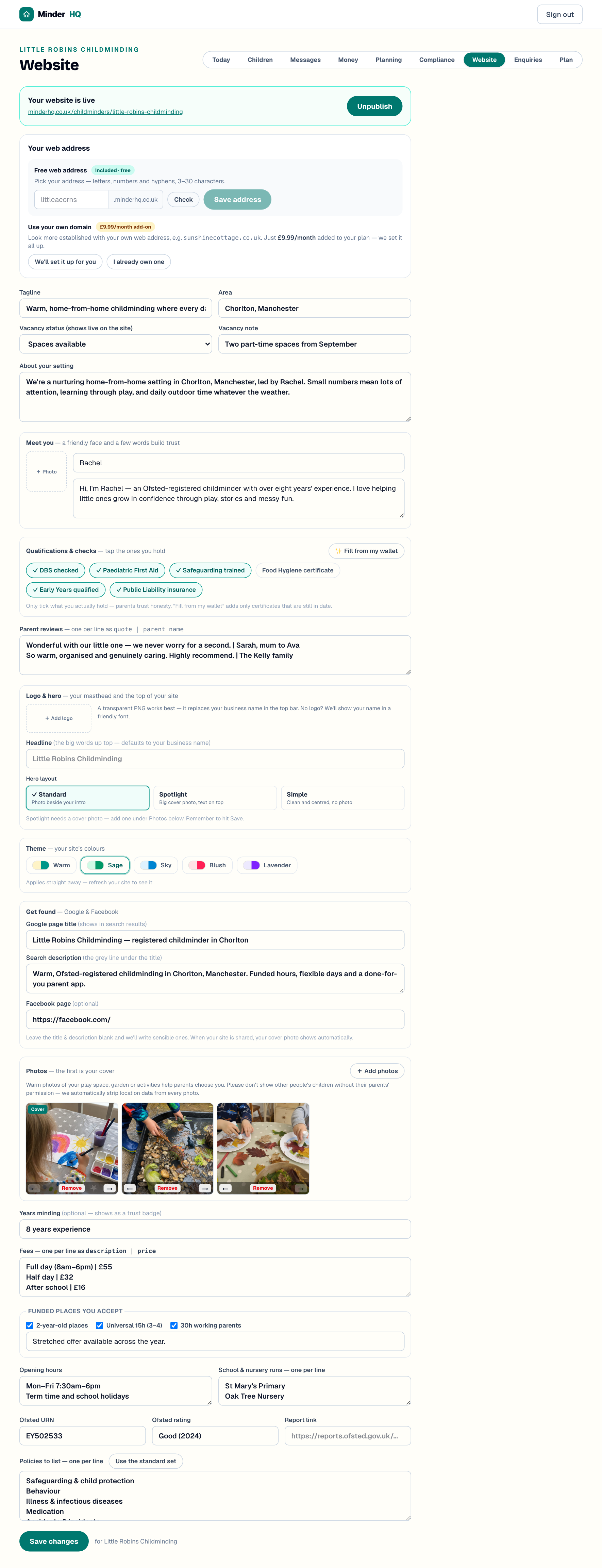
Every MinderHQ account comes with a ready-made public website — and it’s yours to shape. It leads with the three things parents actually search for: a live vacancy badge ("Spaces available", "Waiting list open" or "Currently full"), your fees, and the funded hours you accept.
Around that sit your photos, a few words about you, the qualifications you hold, real parent reviews, your Ofsted rating with a "Read the report" link, opening hours and school runs, the policies you keep, and an "Enquire about a place" form. You edit every bit of it from the Website view. In the app, your Today tab is built in, and "Manage" opens these same views — Website and Enquiries included — on your phone.
Set your vacancy badge, fees and funded hours
The vacancy badge is the first thing parents see, and it changes the moment you save — no waiting, no web designer.
- 1Open the "Website" view.
- 2Under "Vacancy status (shows live on the site)", pick "Spaces available", "Waiting list open" or "Currently full".
- 3Add a "Vacancy note" if it helps — for example "One full-time space from September".
- 4In "Fees", write one line per item as description | price — for example "Full day (8am–6pm) | £55".
- 5Under "Funded places you accept", tick "2-year-old places", "Universal 15h (3–4)" and "30h working parents" as they apply, with an optional note if you stretch the offer.
- 6Press "Save changes".
Tip: Fees are one of the top reasons parents get in touch — showing them upfront saves you both an awkward first conversation.
Make it yours: your photo, your story, real reviews
Parents choose a person, not a building. Three things in the Website view do the most to earn a first message — and none takes long.
- 1Under "Meet you", add a friendly photo of yourself and a few lines about you — your experience, why you love the job, your own family or pets.
- 2In "Qualifications & checks", tap the ones you hold — paediatric first aid, safeguarding, DBS and the rest. Tap "✨ Fill from my wallet" and MinderHQ ticks the certificates that are still in date, straight from your Compliance wallet.
- 3Add a line or two of "Parent reviews", one per line as quote | parent name — for example "Wonderful with our little one — we never worry. | Sarah, mum to Leo".
Tip: Only ever show what you actually hold — parents trust honesty. "Fill from my wallet" saves re-typing and quietly leaves off anything that has lapsed.
Logo, hero and colours
The top of your site — the hero — is the first thing a visitor sees, and you can make it yours in a minute.
- 1Under "Logo & hero", add a logo if you have one — a transparent PNG works best, and it replaces your business name in the top bar.
- 2Set a "Headline" — the big words up top. Leave it blank to use your business name.
- 3Pick a "Hero layout": "Standard", "Spotlight" or "Simple". Spotlight puts a big cover photo behind the words, so add a photo first.
- 4Under "Theme", choose your colours — warm, sage, sky, blush or lavender. It re-tints the whole site while keeping it calm and professional.
- 5Under "Photos", add warm shots of your play space, garden or activities — the first one is your cover.
Tip: We strip location data from every photo automatically. Please don’t show other people’s children without their parents’ permission. Everything here saves with "Save changes" and updates your live site straight away.
Ofsted, policies and the rest
A rating parents can check for themselves builds trust before you’ve even met.
- 1Fill in "Ofsted URN" and "Ofsted rating" — for example "Good (2024)".
- 2Paste your report’s web address into "Report link". Parents then see a "Read the report" link right next to your rating.
- 3Under "Policies to list", press "Use the standard set" to fill in the common policies, then edit the lines to match what you actually hold.
- 4Add "About your setting", "Opening hours" and "School & nursery runs", then press "Save changes".
Tip: You only list policy names — the site tells parents that copies of any policy are available on request, so there’s nothing to upload.
Get found on Google and Facebook
The "Get found" section helps parents searching online land on you rather than a directory.
- 1Fill in "Google page title" — the blue link that shows in search results, e.g. "Little Acorns — childminder in Didsbury". Leave it blank and we’ll write a sensible one.
- 2Add a "Search description" — the grey line under the title in Google. A warm sentence with your area and "spaces available" does the job.
- 3Paste your "Facebook page" address so parents can find your page.
- 4Nothing to upload for sharing: when your site is posted to Facebook or WhatsApp, your cover photo shows automatically.
Tip: Keep the title under about 60 characters and lead with your setting’s name and area — that’s what parents type.
Your web address: free, or your own
Your site comes with a free web address you pick yourself, like a username — and you can upgrade to your own domain later.
- 1In "Your web address", under "Free web address" (included, free), type the label you’d like — letters, numbers and hyphens, 3–30 characters — in front of .minderhq.co.uk. So "littleacorns" becomes littleacorns.minderhq.co.uk.
- 2Tap "Check" to make sure it’s free, then "Save address".
- 3Want your very own domain, like littleacorns.co.uk? Tap "Use your own domain". If you already own one, connecting it is free — we’ll show you the two records to add. If you’d like us to find and register one for you, that’s a £9.99/month add-on with the domain included.
Tip: Your free address is yours to share anywhere — pop it on your Facebook page, in local groups and in your email signature.
Publish your site and share the link
The banner at the top of the Website view tells you where you stand. Once you’re live, "Save changes" updates the site straight away — there’s no separate publish step for edits.
- 1Press "Publish site". The banner changes to "Your website is live", with your web address underneath.
- 2Tap the address to see the site exactly as parents will.
- 3Share it wherever parents find you — your Facebook page, local groups, your email signature.
- 4Need to go quiet for a while? Press "Unpublish". Nothing is deleted, and you can publish again any time.
When a parent enquires
Enquiries land in your Enquiries view and in your email, so you won’t miss one. The form tells parents to expect a reply usually the same day — and the first childminder to answer usually gets the visit.
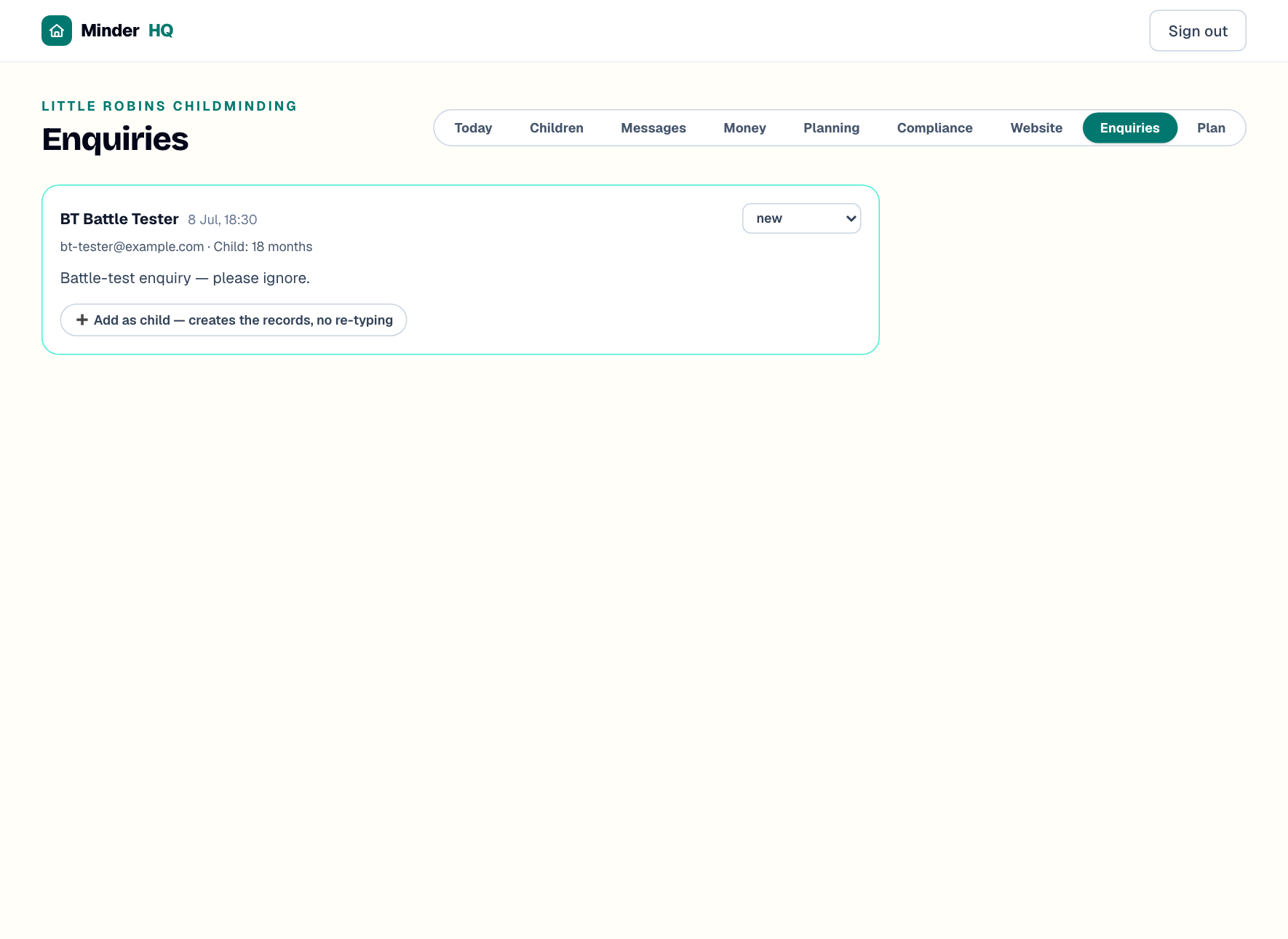
- 1Open the "Enquiries" view — new enquiries are outlined and show the parent’s phone, email, child’s age and preferred start.
- 2Ring or message them back, then use the dropdown on the card to move the enquiry from "new" to "replied", "visit booked", "joined" or "closed".
- 3If they’re joining you, press "Add as child — creates the records, no re-typing" to set up the child and parent in Children in one go.
Tip: Reply the same day if you can. Parents usually contact three or four childminders and often go with whoever answers first.
Quick answers
Can I use my own web address?
Your free littleacorns.minderhq.co.uk address is included with every account. So is connecting a domain you already own (like littleacorns.co.uk) — tap "Use your own domain" in the Website view and we’ll connect it at no extra charge. If you’d rather we found and registered one for you, that’s £9.99/month with the domain included.
Where do the qualification badges come from?
You tap the ones you hold under "Qualifications & checks". "Fill from my wallet" ticks the certificates that are still in date from your Compliance wallet — anything lapsed is left off.
Do I need to publish again after making changes?
No. While your site is live, pressing "Save changes" updates it straight away.
Can I take my site down temporarily?
Yes — press "Unpublish" in the Website view. Your details are kept, and "Publish site" brings it back whenever you’re ready.