Session schedules that write your invoices
Set each child's weekly days, times and rates once, then generate the month's invoice in one click — funded hours itemised at £0.
3 min read
How it works
You tell MinderHQ each child's weekly pattern once — which days they come, what times, and the hourly rate. When the month rolls round, the Money view turns that pattern into a finished invoice in one click, funded hours and all.
You'll set this up in your workspace on the web. In the MinderHQ app, the Today tab is native, and Manage opens these same Children and Money views.
Set a child's weekly pattern
Each line in the schedule is one session — a day of the week, start and finish times, and either an hourly rate or a funded marker.
Repeat for any day that's different — a child can have a funded 08:00–15:00 on Mondays and a paid 08:00–17:30 on Wednesdays. To change a line later, tap “Remove” next to it and add it afresh with the new details.
- 1Open “Children” and tap the child's name.
- 2Open their “Schedule” tab.
- 3Under “Days (tick all that apply)”, tick the days this session covers.
- 4Set the “From” and “To” times.
- 5Type the “Rate £/hour” — or tick “Funded” instead if these hours are covered by the child's funding.
- 6Tap “Add session”.
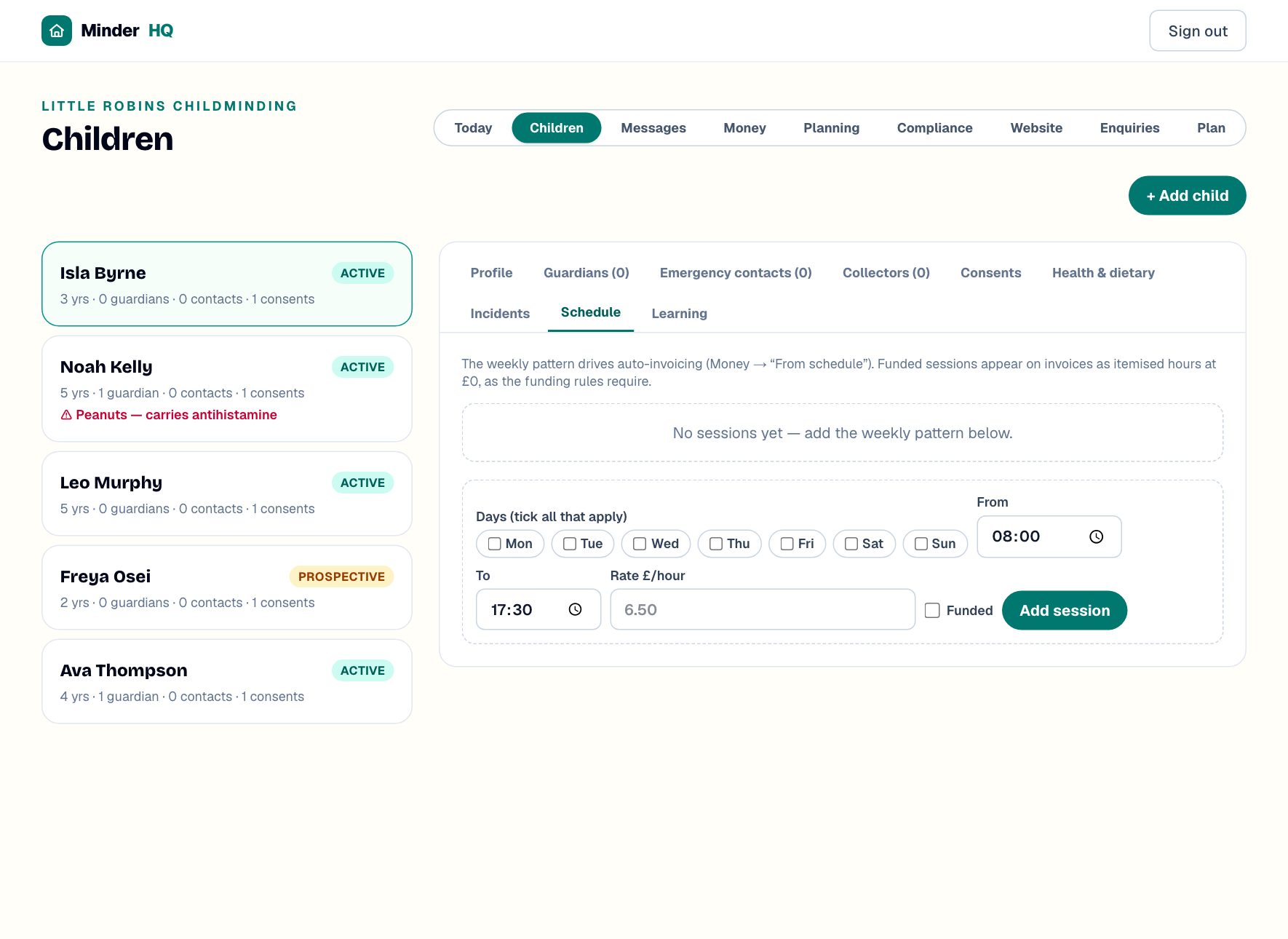
Tip: Same hours Monday to Friday? Tick all five days and tap “Add session” once — it creates all five lines in one go.
Funded hours show at £0
When you tick “Funded” you don't enter a rate. Those sessions appear on invoices as itemised hours at £0, so parents can see exactly what their funding covered — which is how the funding rules say it should be shown. The child's terms, codes and reconfirmation dates live in the “Funded Hours” tab at the top of the Money view.
Generate the month's invoice
Once the pattern is in, the monthly invoice takes seconds.
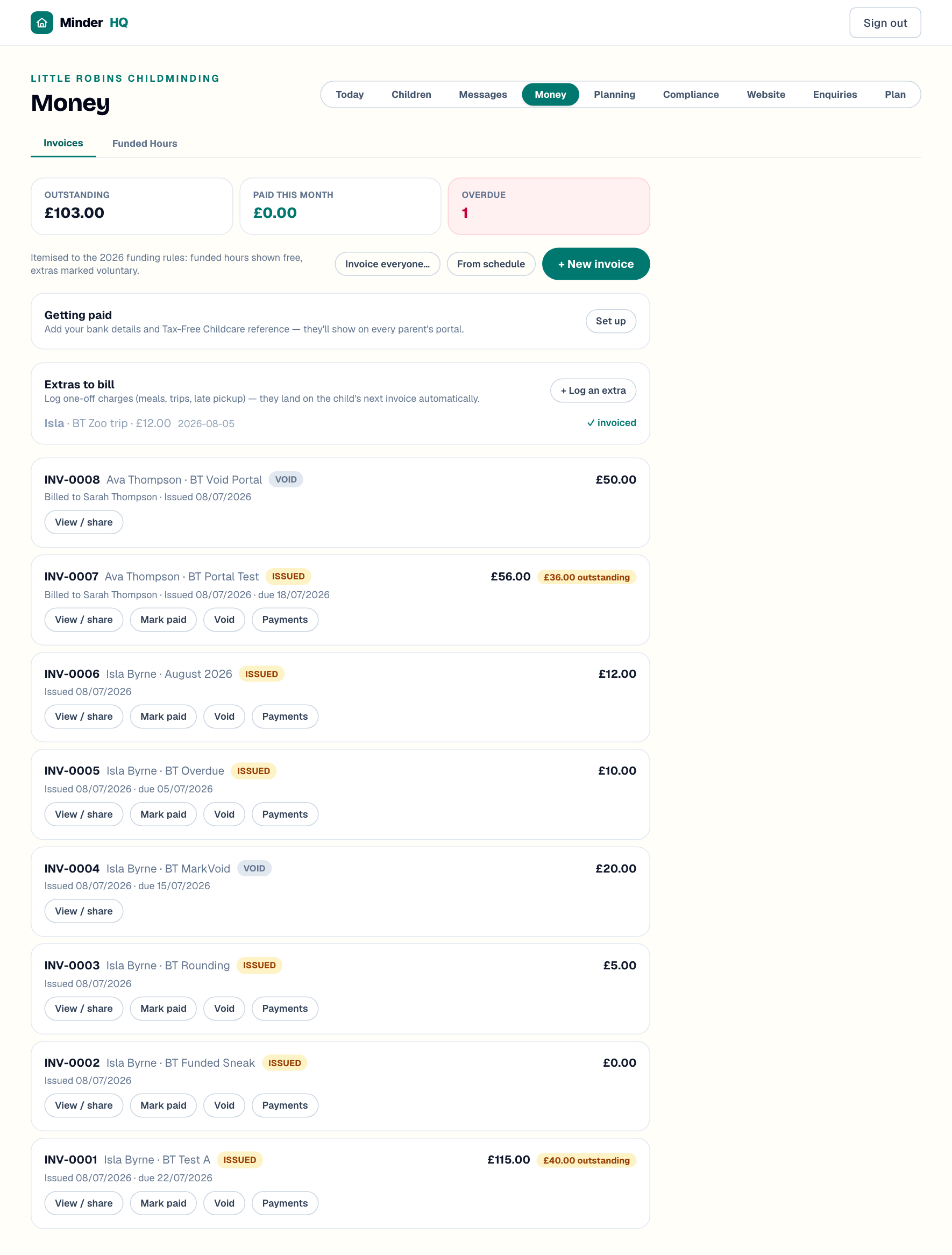
MinderHQ counts that month's sessions, prices the paid hours, adds funded hours at £0 and sweeps in any pending extras. The invoice appears in the list — “View / share” shows the document parents see, and “Mark paid” records it when the money arrives.
Minding several children? “Invoice everyone…” generates the month for every active child in one go, skipping anyone already invoiced for that period and anyone without a schedule yet.
- 1Open “Money” — you'll land on the “Invoices” tab.
- 2Tap “From schedule”.
- 3Choose the “Child” and the “Month”. It suggests next month, because most childminders invoice ahead — pick any month you like.
- 4Tap “Generate invoice”.
One-offs and odd months
Don't edit the schedule for one-off charges like a meal, a trip or a late pickup — log them as extras instead.
If a whole month is genuinely different — changed days, a long holiday — you can “Void” a wrong invoice and build a one-off by hand with “+ New invoice”.
- 1On “Money”, find the “Extras to bill” card and tap “+ Log an extra”.
- 2Pick the child, say what it was, and enter the amount and date.
- 3Tap “Save extra” — it lands on that child's next generated invoice automatically, marked as a voluntary charge.
Tip: Log extras on the day they happen. They sit in the card showing “✓ invoiced” once billed, so you can see at a glance nothing's been missed.
Quick answers
A child's hours are changing — what do I do?
Open their “Schedule” tab, tap “Remove” on the old line and add a session with the new details. Invoices you generate from then on use the new pattern; ones already issued don't change.
Why does the month default to next month?
Most childminders invoice ahead, so “From schedule” suggests the month coming up. You can pick any other month if you bill in arrears.
How do I know an extra has been billed?
The “Extras to bill” card marks each one “✓ invoiced” once it's on an invoice. Anything still pending gets swept onto the next invoice you generate for that child.