Planning activities (and logging them in one tap)
Plan your week with EYFS areas and materials, then log an activity to every checked-in child's diary in one tap.
2 min read
Plan once, log once
The Planning view gives you a simple week at a glance. Jot down what you're doing each day, tag it with an EYFS area, and note what you'll need. Then, when you've actually done the activity, one tap writes it into the diary of every checked-in child — no typing the same entry three or four times.
You'll find it in the "Planning" tab of your workspace. In the app, the Today tab is native, and "Manage" opens these same views — so it works the same wherever you are.
Find your week
Planning shows one card per day, Monday to Sunday. Today's card is highlighted with a "TODAY" badge, and quiet days simply say "Nothing planned."
- 1Open "Planning" from the tabs at the top of your workspace.
- 2Use "← Prev" and "Next →" to move between weeks.
- 3Tap "This week" to jump back to the current week.
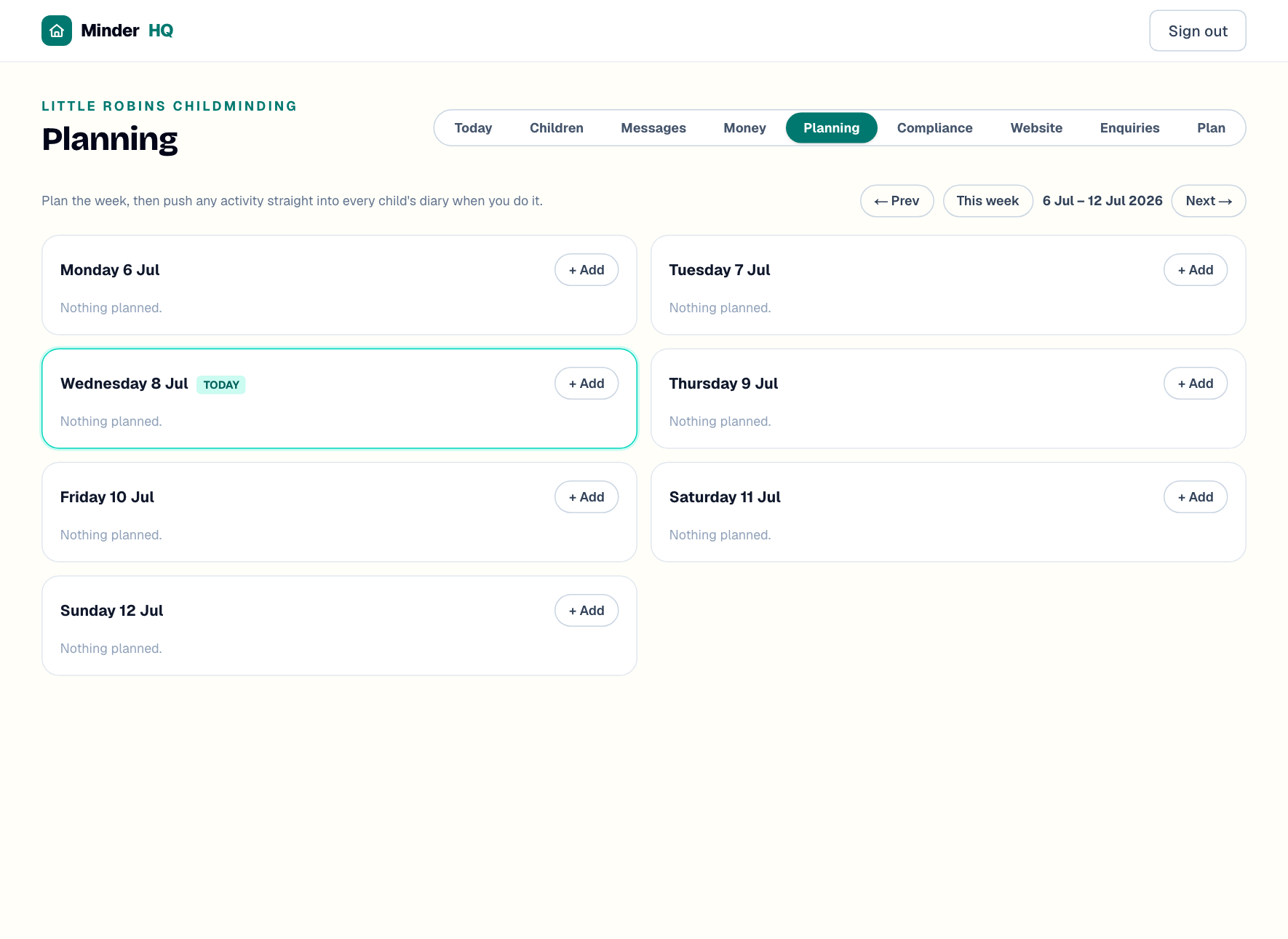
Add an activity
Plans are deliberately light: a title, an optional EYFS area and a notes box. Something you can fill in during nap time beats a beautiful plan you never open.
Change of plan? Tap "Remove" on the activity to delete it.
- 1Tap "+ Add" on the day you want (it switches to "Close" if you change your mind).
- 2Type the activity name — the box suggests "Activity — e.g. Leaf printing".
- 3Pick from "EYFS area (optional)" if one fits — all seven areas are there, from "Communication & language" to "Expressive arts & design".
- 4Add materials and what to watch for in the notes box — it prompts "Notes — what you'll need, what to look for".
- 5Tap "Save".
Tip: Use the notes box as your materials list — "paint, rollers, bag for leaves" — then skim the week on Sunday evening and it doubles as your shopping list.
Log it to every diary in one tap
When you've done the activity, don't write it up child by child. Tap the button on the day you do it, and the entry goes into today's diaries for everyone who's checked in.
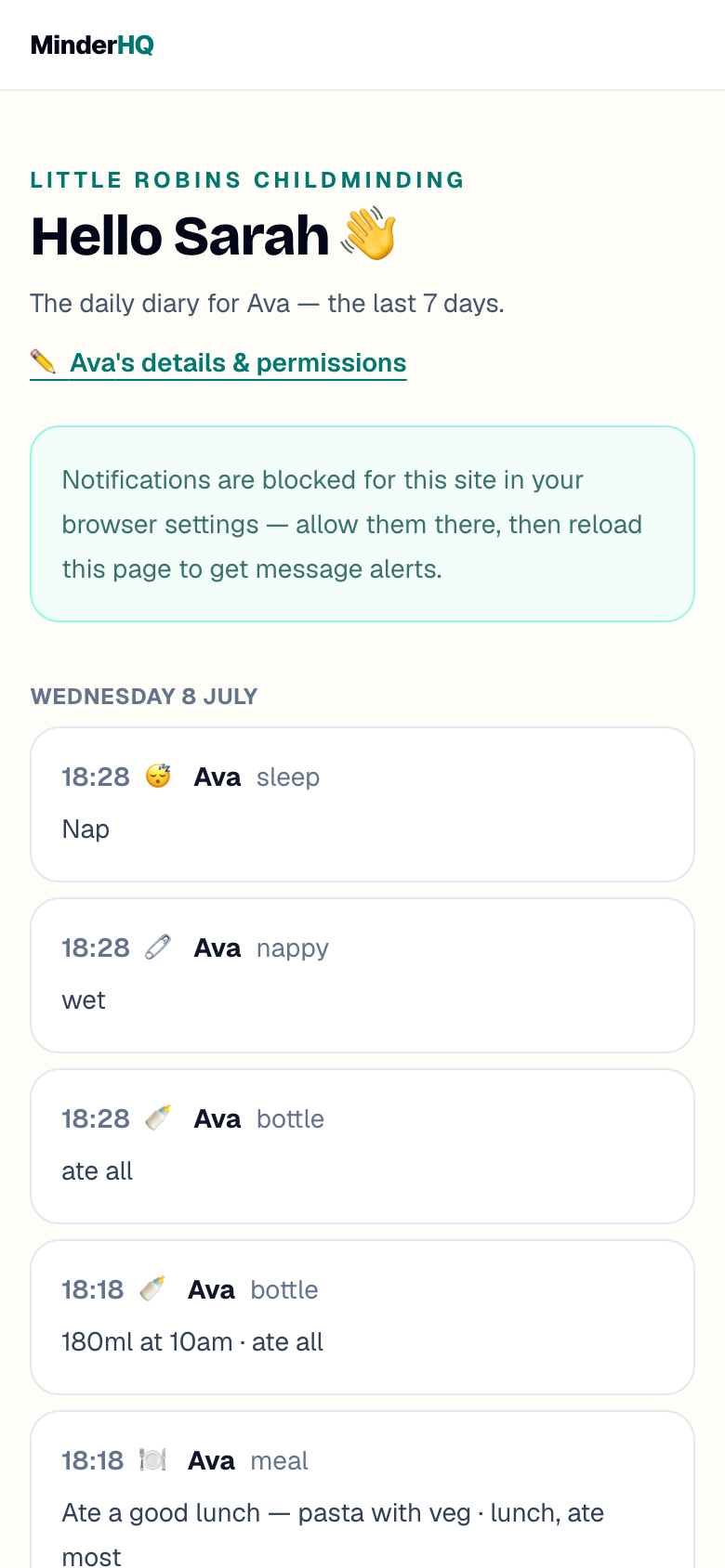
Each child gets a normal activity entry in their diary, so parents see it on the portal and in the parent app just like anything else you log.
- 1Check children in on your Today board as usual.
- 2On the plan, tap "We did this — add to today's diaries".
- 3Watch for the confirmation — something like "Leaf printing" added to 3 children's diaries — parents will see it. The plan now shows "✓ In the diaries".
Quick answers
Which children get the diary entry?
Every child who's checked in when you tap the button. Check everyone in on your Today board first, then log the activity.
Can I log the same plan twice?
No — once logged, it shows "✓ In the diaries" instead of the button. If you repeat an activity on another day, add it to that day's card and log it then.
Do I have to pick an EYFS area?
No, it's optional. Add one when it's obvious — it shows as a small badge on the plan, so you can see at a glance how your week covers the seven areas.