Linking parents: invites, the portal and the parent app
Add guardians, send each parent a private link by text and email, and watch the details and permissions form land straight in the child's record.
3 min read
How parents connect
Every parent you link gets their own private page: the daily diary with photos, messages, invoices and their child's details. What opens it is a private link — and the link is the key. There's no account and no password; opening the link is all a parent ever does.
Treat it like a door key — the invite tells parents it's private to them and asks them not to forward it.
Add a guardian
Guardians are added on each child's record, so start from the child.
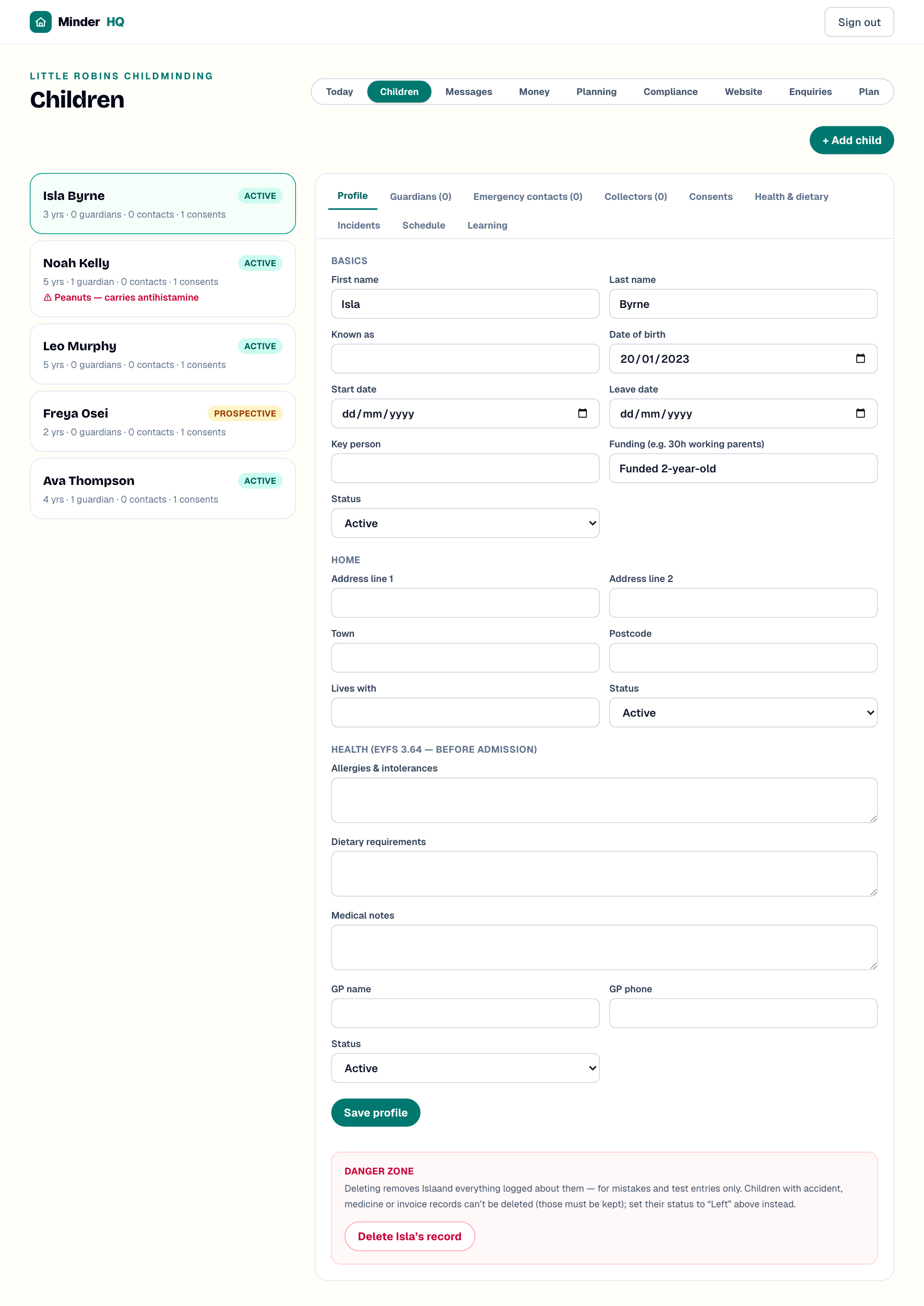
- 1Open "Children" and choose the child (in the MinderHQ app, Today is native — tap "Manage" for these same screens).
- 2Open the "Guardians" tab.
- 3Under "Add guardian", fill in "First name", "Last name" and "Relationship (e.g. Mum)", plus "Phone" and "Email" — the invite needs at least one of those.
- 4Tick "Primary" for the main contact and "Bill payer" if invoices are theirs.
- 5Press "Add guardian".
Send the invite
The invite sends the parent their link by text and email at once — no pasting into WhatsApp unless you want to.
Prefer to hand it over yourself? "Copy parent link" puts the same link on your clipboard (it says "Create parent link" the very first time). If "Send invite" is greyed out, add a phone or email for that guardian first.
- 1On the guardian's row, press "Send invite".
- 2Watch for "Invite sent ✓". The parent gets their link and a nudge to fill in their child's details as the first job.
Tip: Add both a mobile and an email before pressing "Send invite" — it goes out by text and email together, and the text is usually the one parents spot first.
The details and permissions form
Parents' first job on their page is the "All about" form — the online version of your registration pack. It covers what their child likes to be called, who they live with, their address; allergies, dietary requirements, medical notes and GP details; emergency contacts; who else may collect; and yes/no permissions — photos, outings, car journeys, emergency medical treatment, sun cream, plasters, face paint and more.
When they press "Save [child]'s details", it all lands in the child's record — profile, health notes, emergency contacts, collectors and consents — with each permission recorded in the parent's name with the date. Parents see "Saved — [your setting] has been told", and can come back and update any of it later.

Tip: A skipped permission stays unanswered rather than being recorded as a no — worth a quick chat about any blanks at drop-off.
Lost links, unlinking and the parent app
Re-sending is safe: "Send invite" and "Copy parent link" reuse the same link, so a parent who's mislaid it gets the same one again and saved copies keep working. If someone should no longer see a child, press "Unlink" on their row — their page stops showing that child straight away.
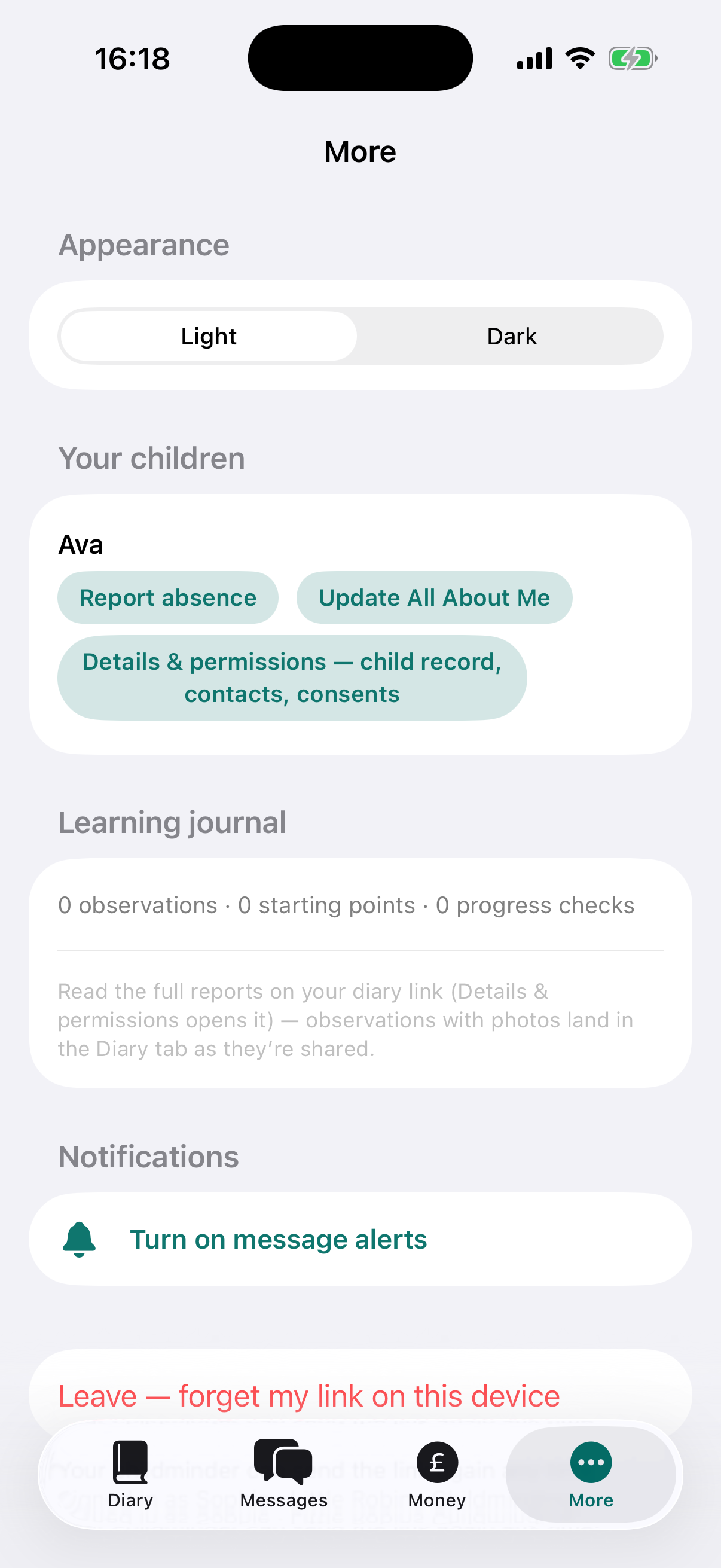
The link opens in any phone browser and can be added to the home screen like an app. The free MinderHQ parent app signs in with the same link and shows the same things: Diary, Messages, Money, and a More tab with "Report absence", "Fill in All About Me" and "Details & permissions", plus notifications for new messages and diary updates.
Quick answers
Do parents need an app or a password?
No — the link is everything. It opens in any browser and can live on the home screen; the parent app is optional and uses the same link.
What if a parent loses their link?
Nothing breaks — press "Send invite" or "Copy parent link" again. It's the same link, so copies they already saved still work.
Can I link both parents?
Yes — add each as their own guardian. Each gets their own private link, so you can unlink one without affecting the other.