Messages: one thread per family
One message thread per family. Write from your phone, share a photo or video, tidy the wording with one tap, and parents are nudged by push, email or text automatically.
2 min read
One thread per family
Open "Messages" and you'll see your families listed down the left — one thread per parent, with their children's names underneath and a preview of the last message. If two parents are linked to a child, each has their own private thread, so conversations never cross between households.
Threads appear automatically once you add guardians to a child — nothing to set up. Unread messages show as a count badge on the thread and on the "Messages" tab itself, so you can see at a glance who's waiting on a reply.
In the MinderHQ app, the Today tab is native; for messages, tap "Manage" — it opens this same view, sized for your phone.
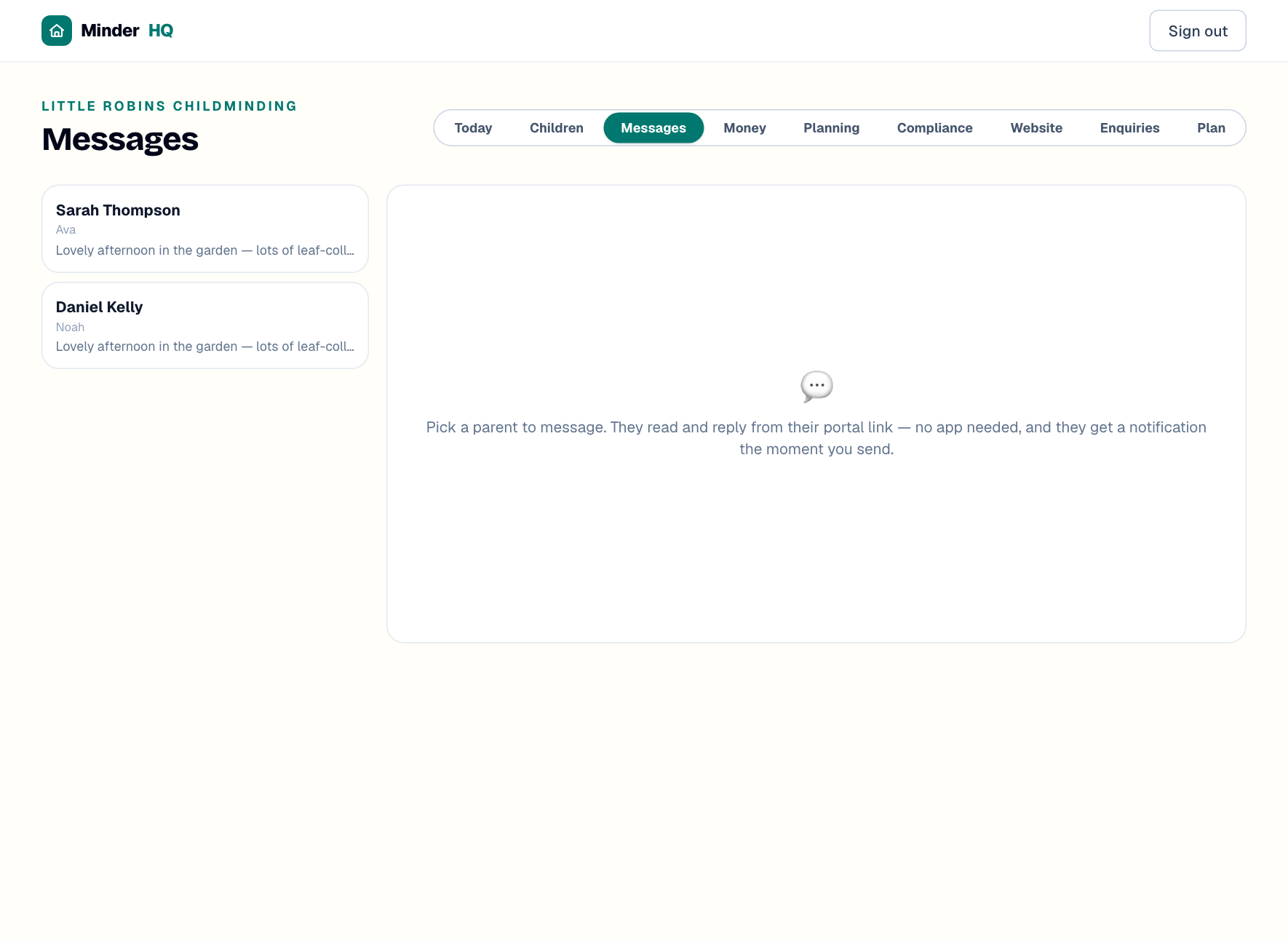
Tip: A brand-new thread reads "No messages yet — say hello". A quick hello when you link a family proves their portal link works — and parents reply faster once they've seen how easy it is.
Send a message
Writing to a parent takes seconds, and the polish button is there for the days when the right words won't come.
- 1Open "Messages" (in the app, tap "Manage" first).
- 2Tap the parent's name in the list — their thread opens with the full history.
- 3Type your message in the box at the bottom.
- 4Optional: tap "✨" to fix spelling and tone. It tidies your wording, keeps your meaning, and never sends anything by itself.
- 5Tap "Send".
Share a photo or video
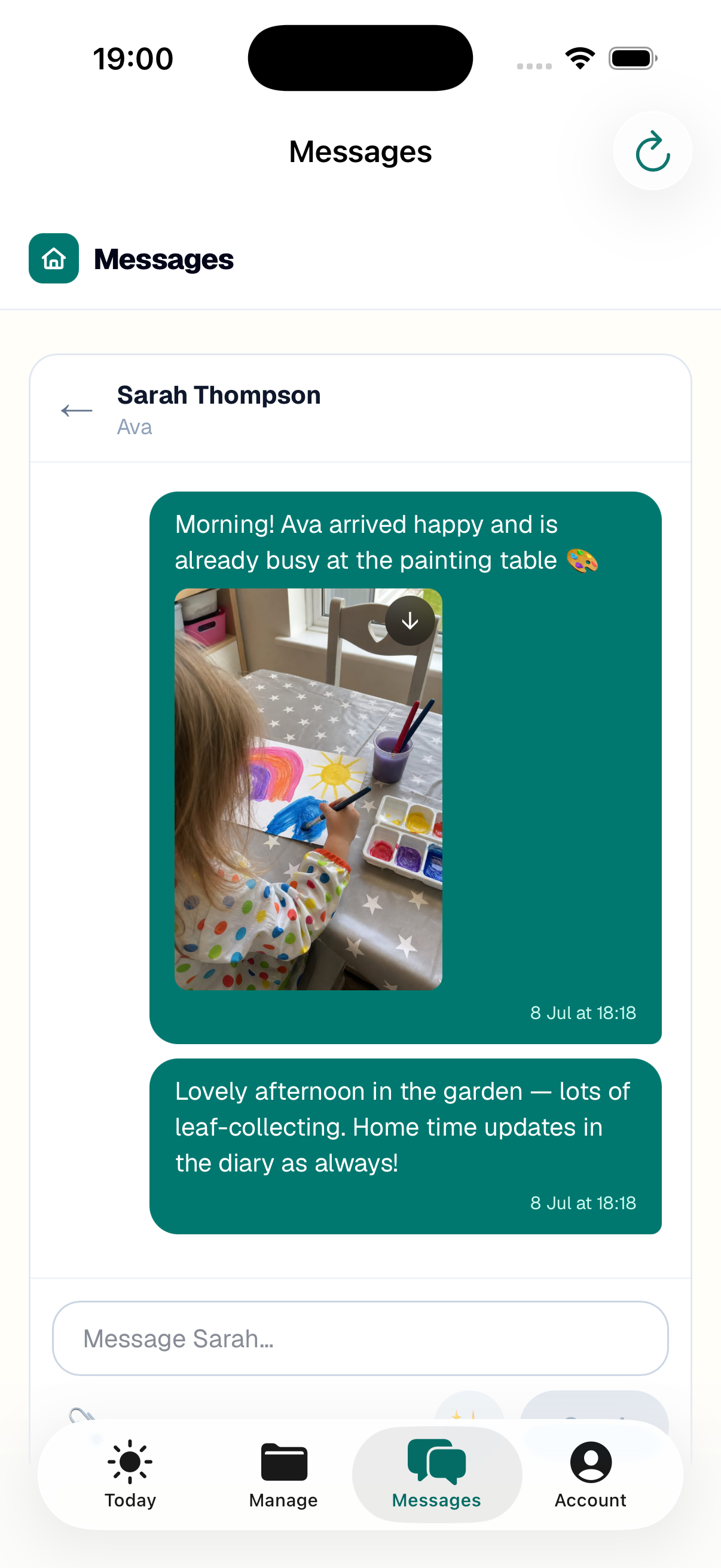
Messages carry more than words. Send a first painting, a muddy grin from the garden or a short clip — it stays in that family’s private thread, so no one else sees it.
Parents can save any photo you send straight to their camera roll with "Save to Photos", and download a video the same way.
- 1In the thread, tap the "📎" button by the message box.
- 2Pick one or more photos or short videos from your phone — up to ten at a time.
- 3Add a line of text if you like, then tap "Send".
Tip: Big group moments still belong in the diary, where the whole day lives — but a quick one-to-one photo, just for that family, is lovely in the thread.
How parents get nudged
The moment you send, the parent gets a nudge by the cheapest route that will reach them: first a push notification to any device where they've allowed notifications; if no device takes the push, an email with a "Read and reply" link; and a text only if they have neither. That last-resort rule keeps running costs down without leaving anyone out.
It's one nudge per batch of unread messages, so three quick lines won't ping a parent three times. And the nudge never includes what you wrote — just that a message is waiting — so your words never sit in a text preview or someone's inbox.
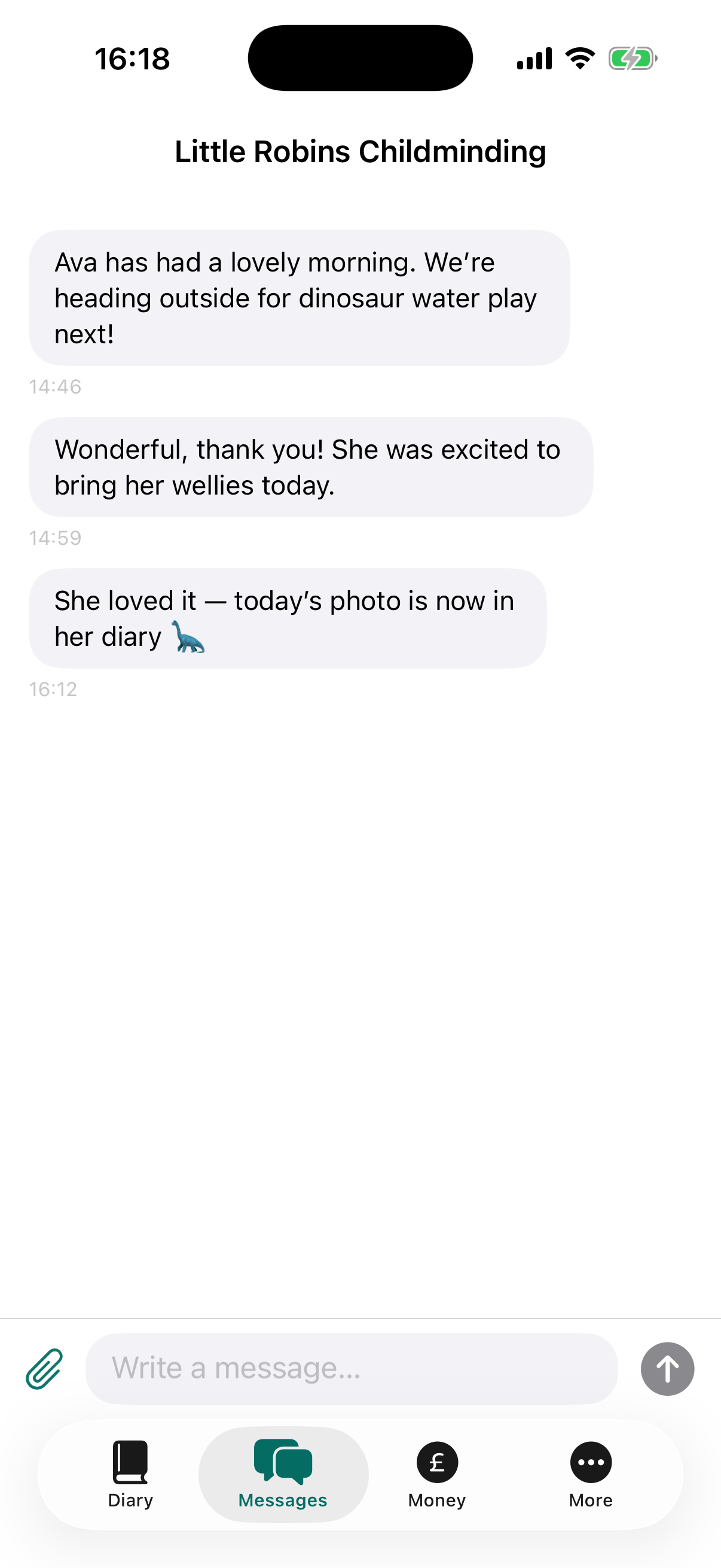
Parents read and reply from their portal link, which opens in any browser with no app needed, or from the "Messages" tab of the parent app.
When a parent replies
Replies land in the same thread in your Messages view, and your phone gets a push notification, so nothing waits until you're next at a screen. Unread counts stay on the "Messages" tab and on the family's thread until you've read them; if the thread is already open, new replies appear by themselves.
Some messages arrive without anyone typing — when a parent reports an absence from their app, for example, it drops into the thread as a message, so you get a record as well as the news.
Quick answers
Do parents need the app to read my messages?
No. The nudge links to their parent portal, which opens in any browser. The app shows the same thread, but it's optional.
Can I send photos and videos, not just text?
Yes — tap the "📎" button by the message box to attach photos or short videos (up to ten at a time). They stay in that family’s private thread, and parents can save them to their phone.
Will a parent get a text every time I message?
No — texts are the last resort, only for parents with no push notifications and no email address. Most nudges go by push or email, and it's one nudge per batch of unread messages.
Why doesn't the nudge show what I wrote?
On purpose. It only says a message is waiting, so private details never appear on a lock screen, in a text preview or in an inbox — parents read the message itself in their portal or app.