Invoices: itemised, automatic and paid on time
Build itemised invoices with funded hours at £0, generate a month for everyone in one tap, and let polite reminders chase overdue payments.
3 min read
It all lives in Money
Open Money in your workspace. In the MinderHQ app, Today is the native tab for the daily juggle — Money, like everything else, opens from Manage and works exactly the same.
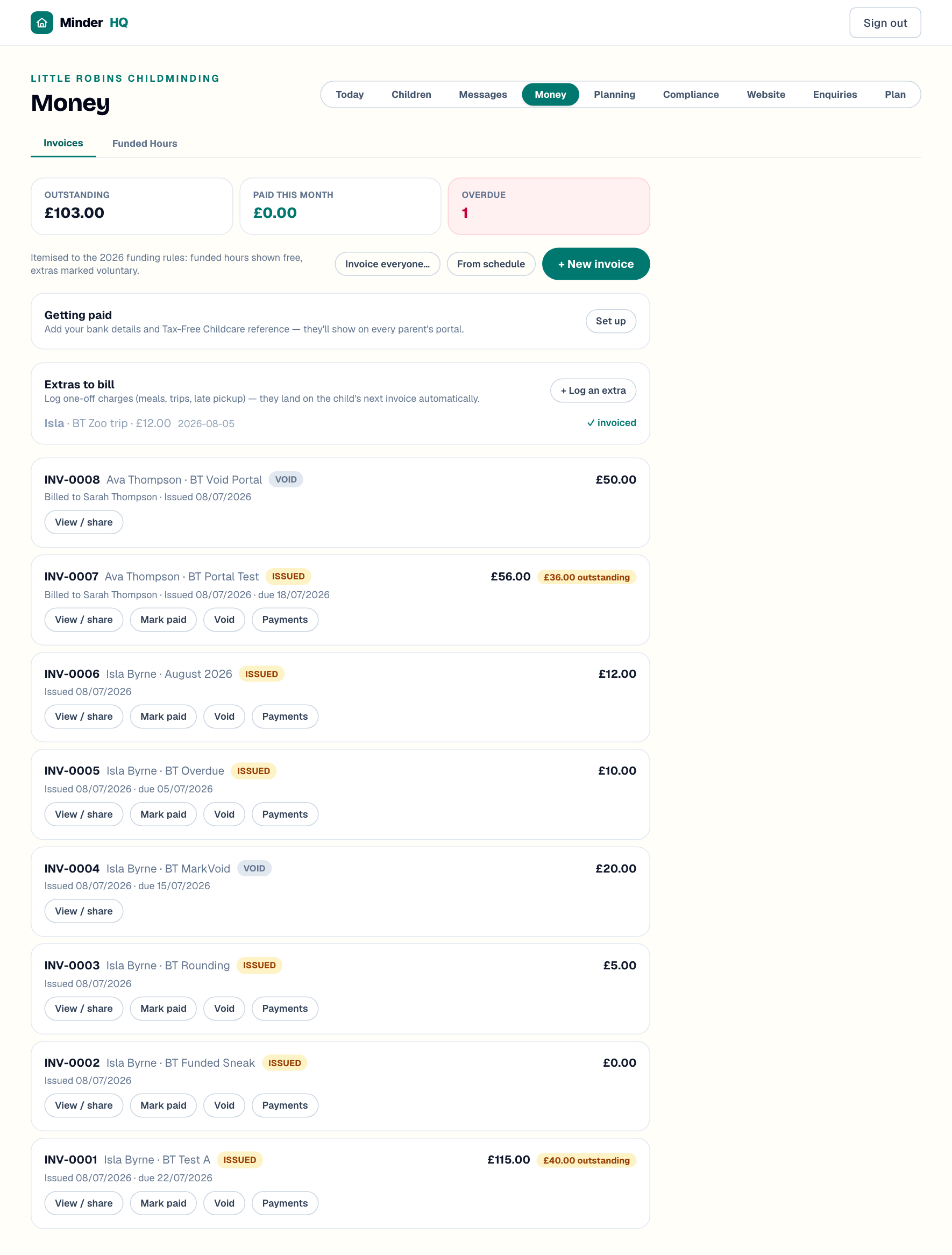
The Invoices tab shows three totals at a glance — Outstanding, Paid this month and Overdue — with every invoice listed underneath. Everything is itemised to the 2026 funding rules: funded hours show as free, and extras are marked voluntary.
Create an itemised invoice
Building one by hand takes a minute:
- 1Tap "+ New invoice".
- 2Choose the "Child" and who to "Bill to", add a "Period" (e.g. July 2026) and set "Due in (days)" — 14 is the default.
- 3Add your lines, picking a type for each: "Funded hours (£0)", "Paid hours", "Food (voluntary)", "Consumables (voluntary)", "Activities (voluntary)" or "Other". Funded lines are locked at £0.00, and food, consumables and activities go on the invoice as voluntary charges.
- 4Use "+ Add line" or "+ Food (voluntary)" for extra rows, check the total, then tap "Create invoice".
Or generate it from the schedule
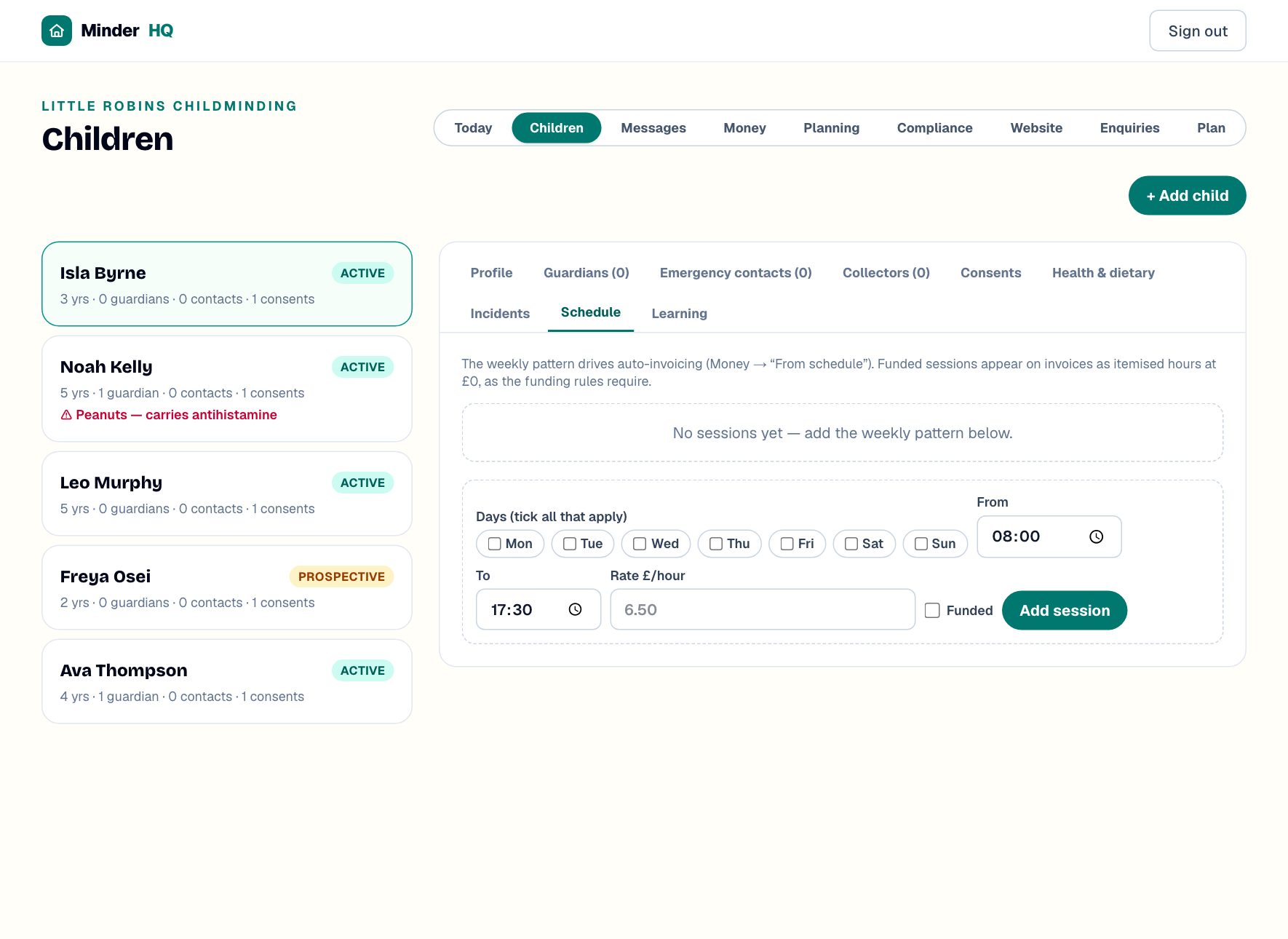
If a child's Schedule tab holds their sessions, rates and funded hours, you never need to type an invoice again.
- 1Tap "From schedule", pick the "Child" and "Month", then tap "Generate invoice" — funded sessions land as £0 itemised hours.
- 2To do the whole setting at once, tap "Invoice everyone…", pick the month and tap "Go".
- 3The batch creates one invoice per child, skipping anyone already invoiced for that month or with no schedule — and it names who it skipped, so nothing slips through.
Tip: Both buttons suggest next month. Invoicing ahead is the childminder norm — parents get the bill before the care, not after.
Extras: log them the moment they happen
Zoo entry, a late pickup, an unplanned lunch — log it on the "Extras to bill" card and it rides that child's next generated invoice automatically.
- 1Tap "+ Log an extra".
- 2Pick the child, describe it (e.g. Zoo trip entry), enter the amount and choose "Food", "Consumable", "Activity" or "Other".
- 3Tap "Save extra". Pending extras stay on the card until an invoice sweeps them up, then show a "✓ invoiced" tick.
Tip: Log extras on the day. By month-end they're impossible to remember — this way they simply appear on the right invoice.
Sending it, and being easy to pay
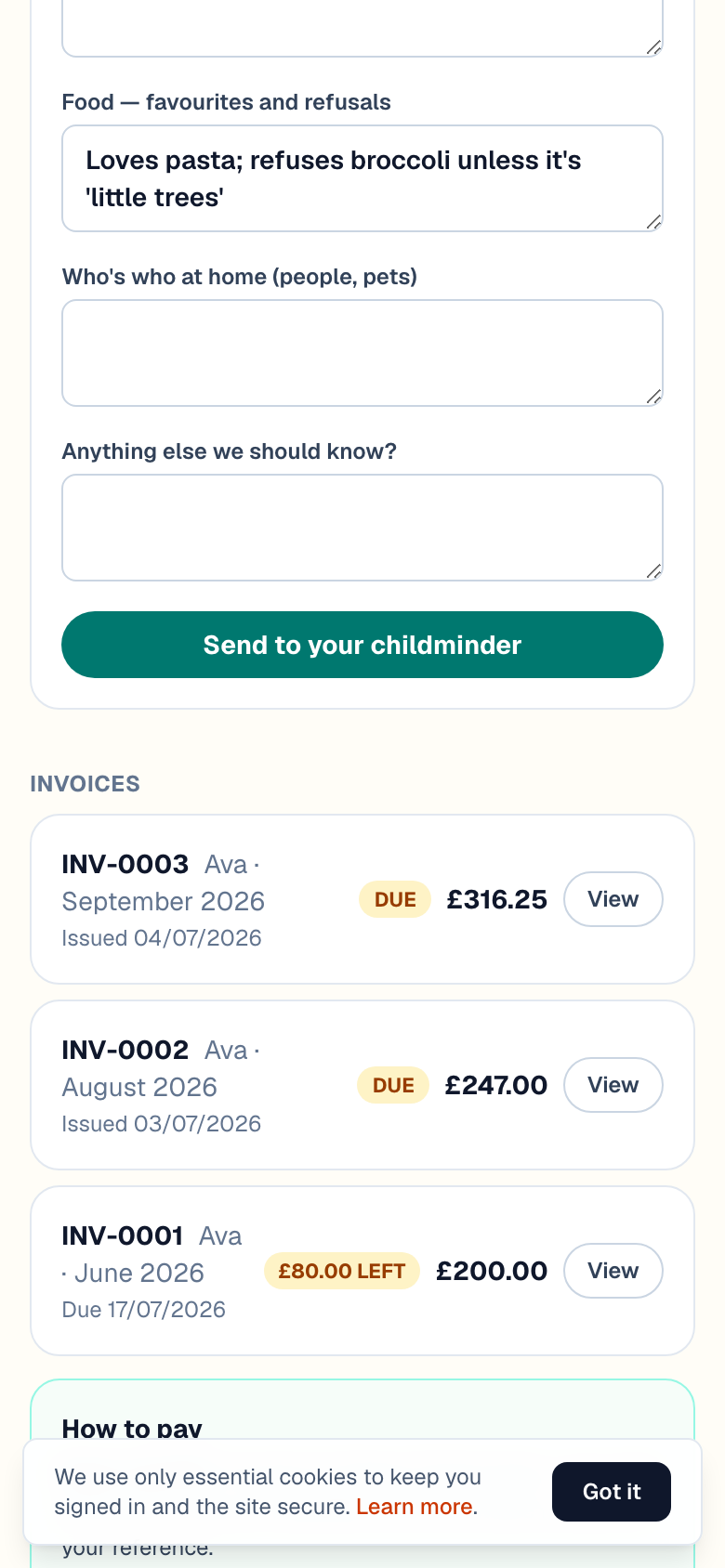
Tap "View / share" on any invoice to open the shareable document and send the link. Parents also see every invoice — with your payment details underneath — in their portal and the parent app's Money tab. Set those details up once:
- 1On the "Getting paid" card, tap "Set up" (or "Edit").
- 2Add your "Account name", "Sort code", "Account number" and "Tax-Free Childcare reference".
- 3Choose how to chase overdue invoices: "Weekly until paid (recommended)", "Every 3 days until paid" or "Off — I'll chase myself". The polite reminders then run without you lifting a finger.
- 4Tap "Save payment details".
Recording payments
When money arrives, log it against the invoice so your totals stay honest.
- 1Tap "Payments" on the invoice.
- 2Enter the "Amount (£)" — it pre-fills with what's outstanding — and pick how it arrived: "Tax-Free Childcare", "Bank transfer", "Cash", "Card" or "Other".
- 3Add a reference (worth keeping for Tax-Free Childcare payments) and the date received, then tap "Record payment".
Tip: You don't need to tap "Mark paid" — the invoice marks itself paid once recorded payments cover the total. Part-payments show what's still outstanding, and "Undo paid" fixes a slip.
Quick answers
Why do funded hours show as £0.00?
Because funded hours must be free at the point of delivery. MinderHQ itemises them at £0 and flags food, consumables and activities as voluntary, so parents see exactly what's funded and what's charged.
Can I turn the overdue reminders off?
Yes — on the "Getting paid" card tap "Edit" and choose "Off — I'll chase myself". Weekly is the recommended setting.