Getting started with MinderHQ
From a blank account to your first check-in: sign up, add a child, invite a parent to the portal and run your day from the Today board.
3 min read
What you'll do in your first hour
MinderHQ keeps your child records, daily diary, parent messages and invoices in one place. This guide takes you from a blank account to a working setup: sign up, add a child, link a parent, send the portal invite and do your first check-in. Ten quiet minutes covers the first three — the rest fits around the children.
Create your account
Sign up at minderhq.co.uk/join — it's free while you set up. If we've already set your account up for you, skip this bit and sign in at minderhq.co.uk/login instead.
You'll land in your workspace — tabs along the top take you to "Today", "Children", "Messages", "Money" and more.
- 1Go to minderhq.co.uk/join.
- 2Fill in "Your setting's name" — your childminding business's name, e.g. Little Acorns Childminding.
- 3Enter your "Email" and choose a "Password" (at least 8 characters).
- 4Tap "Create account".
- 5If you see "Check your email", tap the link we send you, then "Go to sign in" — your setting is finished right after you sign in.
Add your first child
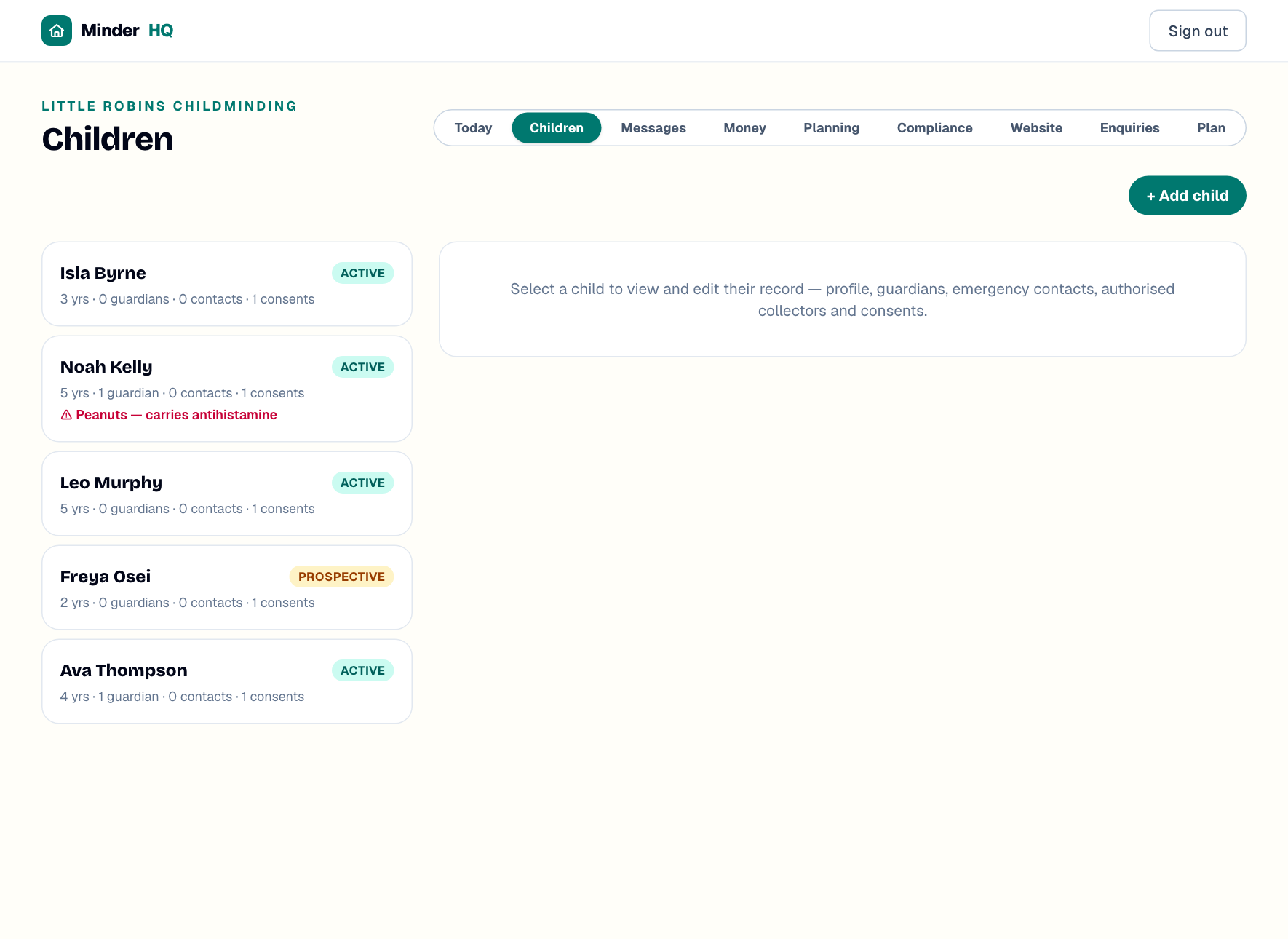
You only need a name to get a child on the books — everything else can wait until nap time.
Their record opens alongside, with tabs from "Profile" and "Guardians" through to "Schedule" and "Learning". Don't fill it all in now — allergies and "Emergency contacts" are the two worth doing early.
- 1Tap "Children" in the top bar, then "+ Add child".
- 2Enter "First name" and "Last name"; add "Date of birth" and "Start date" if they're handy.
- 3Leave "Status" as "Active" — or pick "Prospective" if they haven't started yet.
- 4Tap "Save child".
Tip: Add the date of birth even in a hurry — it sets the child's age band and feeds your under-1 and under-5 ratio meters on the Today board.
Link a parent and send their portal invite
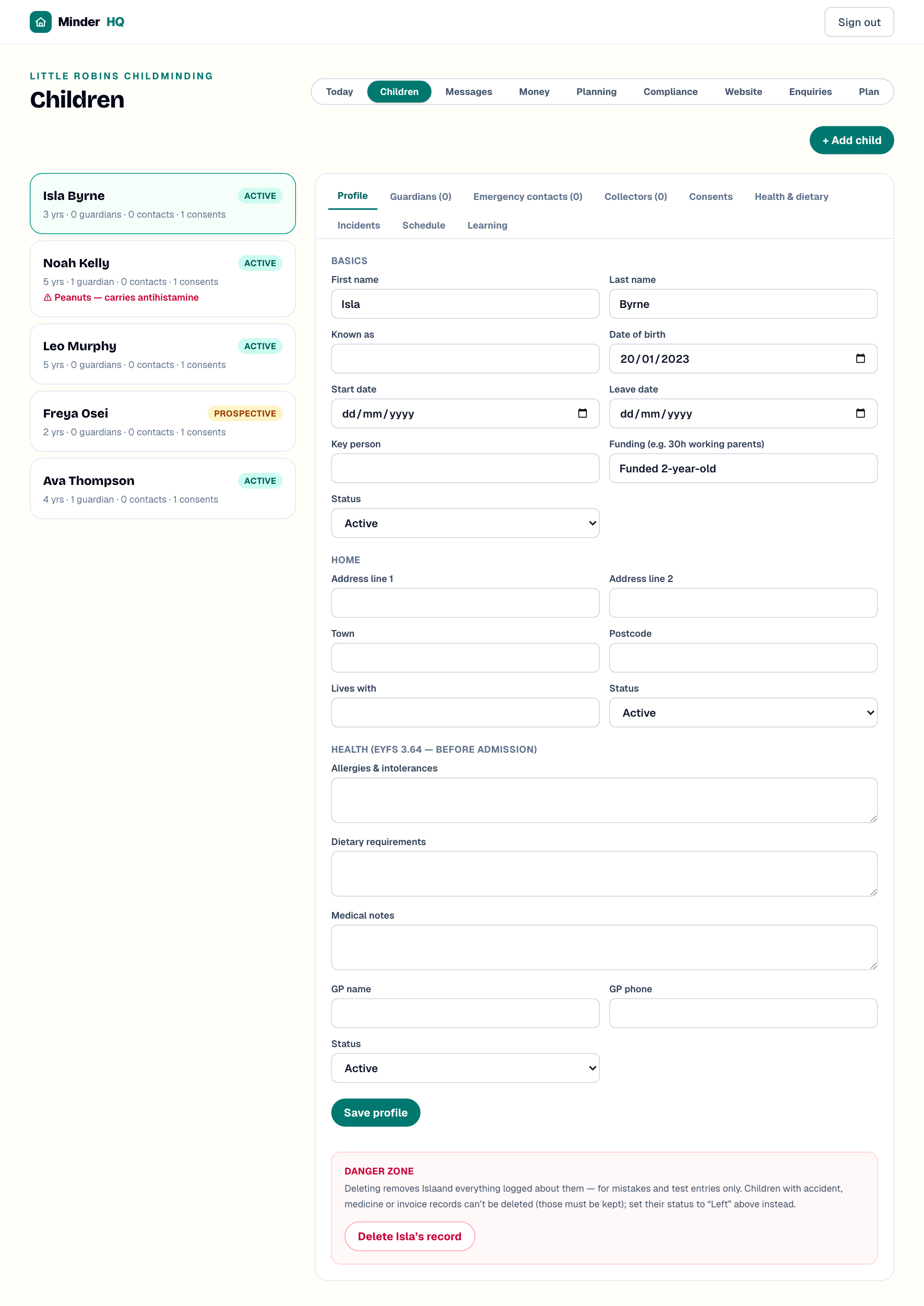
Parents get a private portal where the day's diary and photos land automatically.
The link is the parent's login — there's no password to forget. Prefer to send it yourself over WhatsApp? Tap "Create parent link" to copy it, and treat it like a password — share it only with that parent. Once in, parents can fill in their child's details, contacts, collectors and permissions themselves — less typing for you.
- 1On the child's record, open the "Guardians" tab.
- 2Under "Add guardian", enter their name, relationship (e.g. Mum) and a mobile number or email — the invite needs one or the other.
- 3Tick "Primary" for the main contact, and "Bill payer" if they pay the invoices.
- 4Tap "Add guardian".
- 5Tap "Send invite" next to their name — MinderHQ sends them their private portal link by text or email.
Your first check-in
"Today" is your working day: who's in, your ratio meters and the day's diary.
The "In your care" meters (under 1, under 5, under 8) fill as you check children in, and allergies sit right on the child's card. Everything you log lands in "Today's diary" — and on each child's parent portal.
- 1Tap "Today" in the top bar.
- 2As each child arrives, tap "Check in" next to their name.
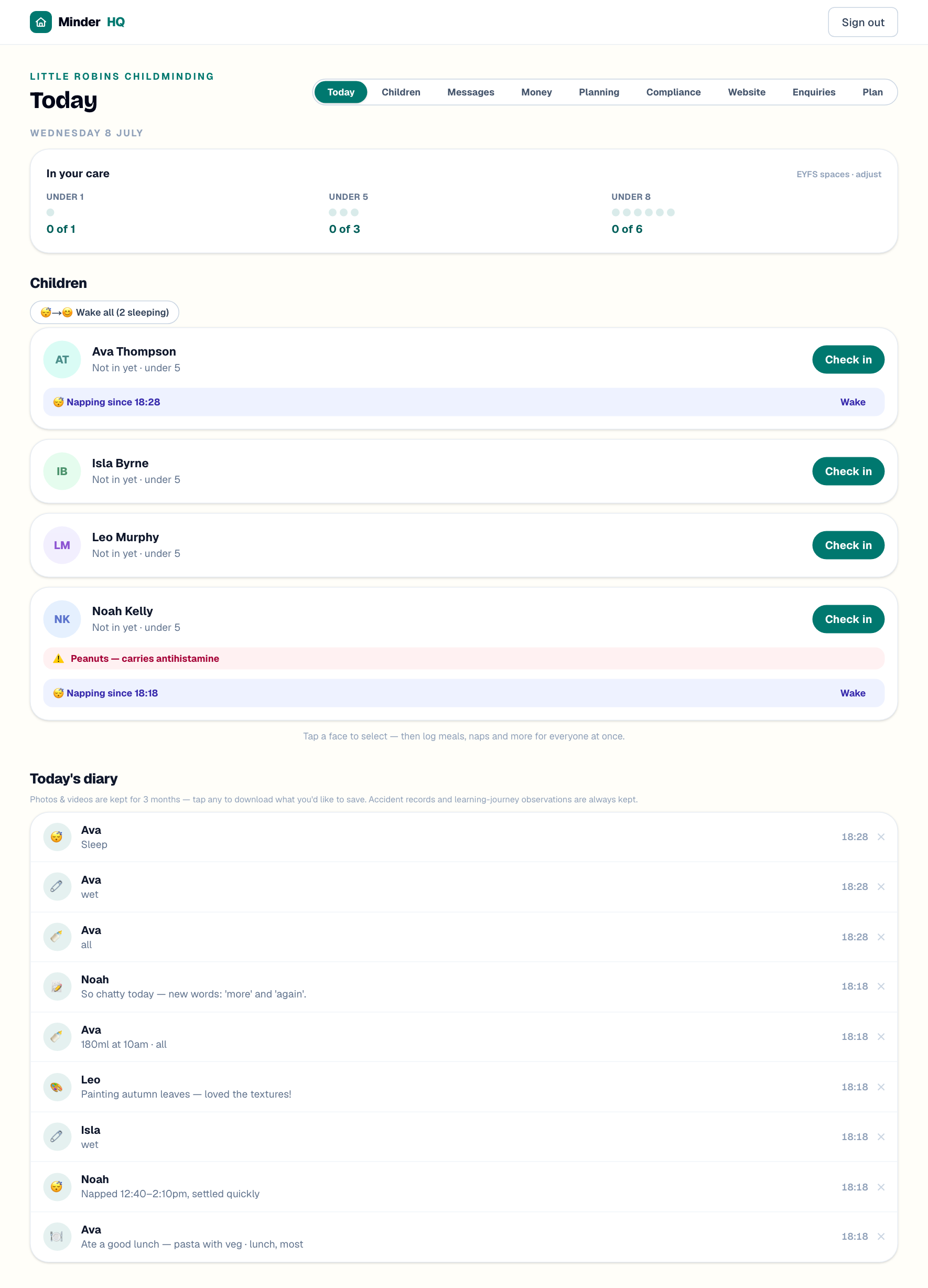
Tip: On the Today board, tap a child's face to select them — then log meals, naps and more for everyone at once.
On your phone
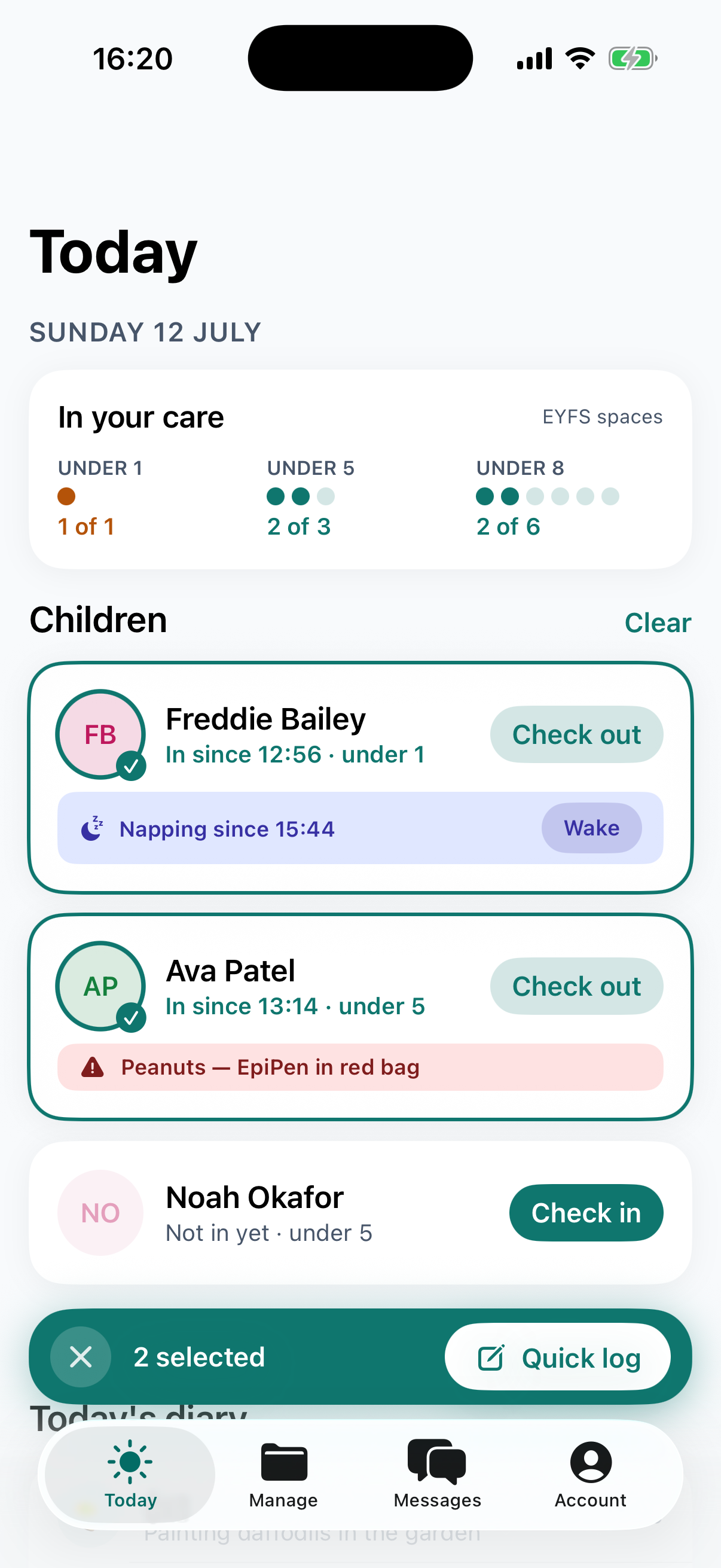
You'll do most of this from your phone. In the MinderHQ app the "Today" tab is native — built for quick one-handed logging — and "Manage" opens the same views you've just used, from "Children" to "Money". Nothing here is web-only.
Quick answers
Do I need a card to sign up?
No — it's free while you set up.
Do parents need a password?
No. The invite link is their login. If it's lost, open the child's "Guardians" tab and tap "Send invite" again.
Can I add a child who hasn't started yet?
Yes — set "Status" to "Prospective" when you add them, then switch it to "Active" on their profile once they start.